gobo-vscode
Select Gobo Eiffel Installation
The first time you use this extension, you’ll be asked to configure a Gobo Eiffel installation. This is required because the extension relies on the Gobo Eiffel toolchain to compile, run, and analyze your Eiffel code.
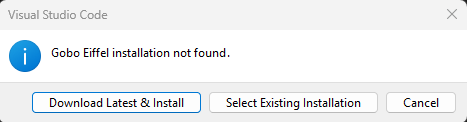
🟢 Recommended for beginners: Simply choose Download Latest & Install. The extension will automatically set up the most recent release of Gobo Eiffel for you.
📥 Download Latest & Install
The easiest option is to let the extension download and install the most recent Gobo Eiffel release. Releases are hosted on GitHub, and by default the one tagged as latest will be used.
You’ll be prompted to choose an installation folder. The toolchain will then be installed inside a subfolder such as:
path/to/install-folder/gobo-<version>
A progress indicator will appear in the bottom-right corner of VS Code during download and installation:


📂 Use An Existing Installation
If you already have Gobo Eiffel installed on your machine, you can simply
point the extension to it.
Choose the root folder of your installation (the one containing bin/,
library/, tool/, etc.).
💡 For best results, we recommend using the most recent release of Gobo Eiffel.
🔄 Switch To Another Installation
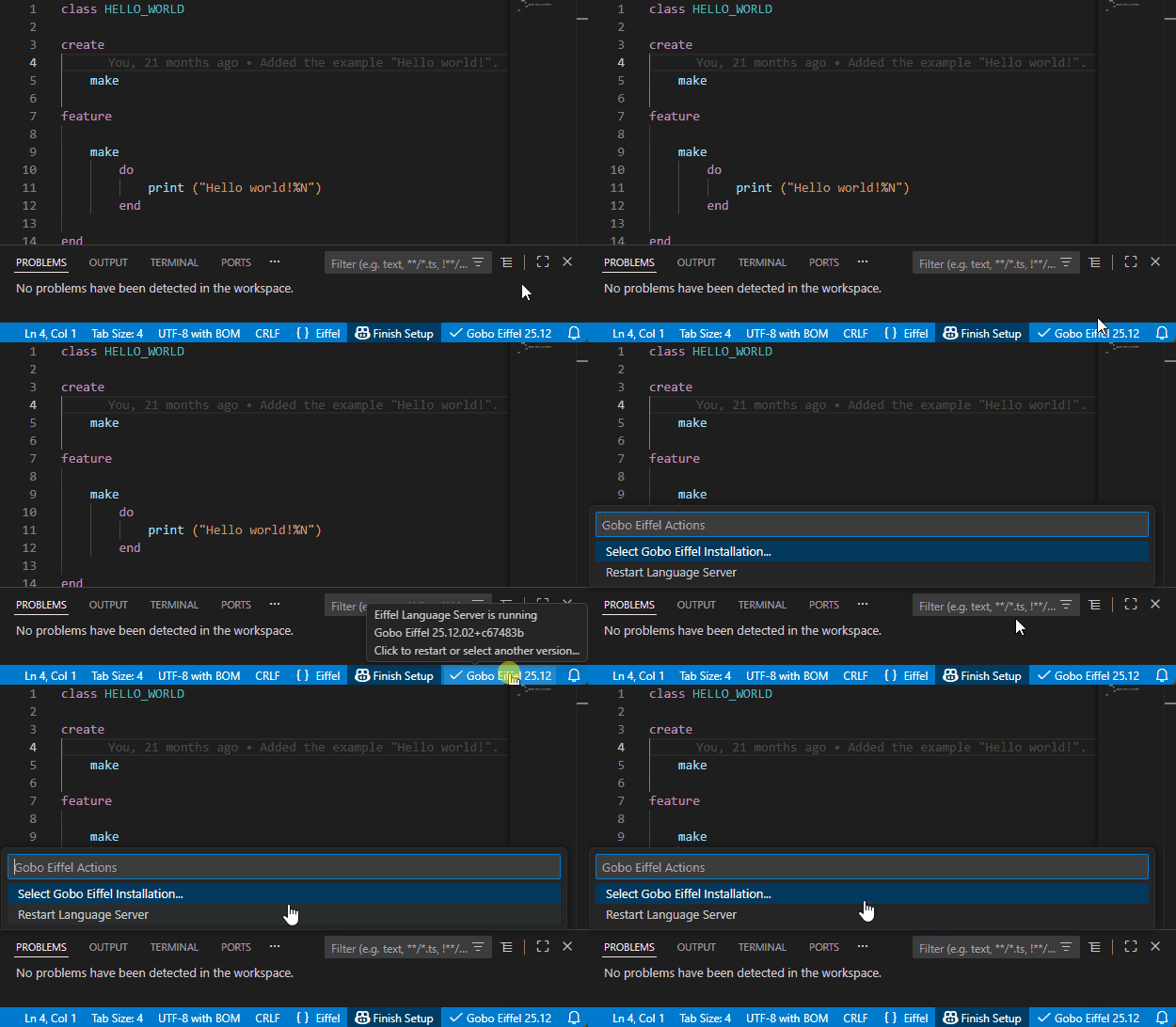
At any time, you can change the selected installation from the Command Palette with the command Gobo Eiffel: Select Gobo Eiffel Installation.
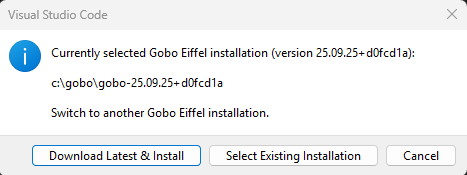
This command is also available from the status bar. Just clik on the Gobo Eiffel label which indicates the version of the Eiffel language server currently used:
✅ Automatically Check For Updates
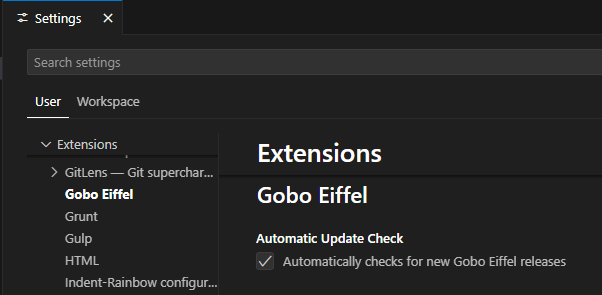
By default, the extension automatically checks once every 24 hours for newer releases of Gobo Eiffel. If a newer version is found, you’ll be prompted to download and install it.
You can turn off this behavior by setting:
"gobo-eiffel.automaticUpdateCheck": false
in the settings.json file, or from the UI:
⚡ Nightly Build (Advanced)
If you prefer cutting-edge features, you can switch from stable releases of Gobo Eiffel to the nightly build. Enable it with the following setting:
"gobo-eiffel.useNightlyBuild": true