gobo-vscode
Workspace ECF File
To provide accurate feedback while editing Eiffel code, the Eiffel analyzer must inspect not only the current class, but also all related classes in the workspace and in third-party Eiffel libraries.
This is made possible by an ECF file (Eiffel Configuration File). An ECF file describes where classes are located and specifies options that control how they are analyzed.
In the Gobo Eiffel VS Code extension, a workspace ECF file can be specified using workspace-specific settings, together with an associated ECF target (the entry point defined in the ECF file).
Workspace Settings
| Setting | Description | Default |
|---|---|---|
gobo-eiffel.workspaceEcfFile |
ECF file to analyze Eiffel classes in current workspace. | null |
gobo-eiffel.workspaceEcfTarget |
Target in ECF file to analyze Eiffel classes in current workspace. | null |
gobo-eiffel.workspaceEnvironmentVariables |
Environment variables used in ECF file. | {} |
If no ECF file is specified, the extension looks for ECF files at the
root of the workspace and automatically selects the last one
(alphabetically).
If no ECF file is found, a default configuration is used, based on
Gobo Eiffel libraries and recursive clusters starting at the
workspace root.
If the ECF target is not specified, the last target defined in the selected ECF file is used.
If the ECF file relies on environment variables, their values can be specified here.
Select Workspace ECF File
The easiest way to configure these settings is to choose Select Workspace ECF File from a contextual menu.
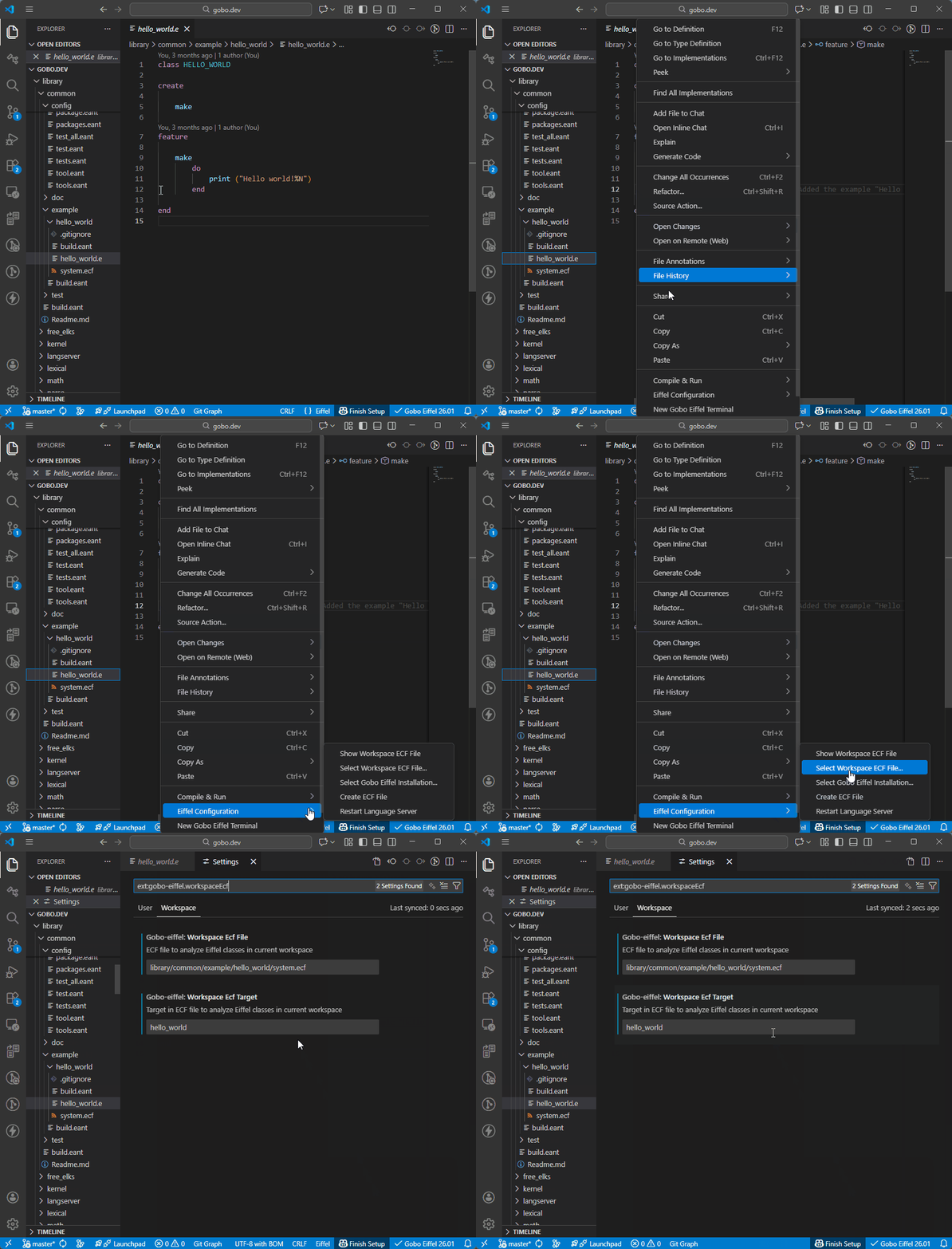
You can then enter the name of the ECF file and its target. The file path is relative to the root folder of the workspace.
Select Current File as Workspace ECF File
You can also select an existing ECF file directly.
In the contextual menu of the file, choose Select Current File as Workspace ECF File.
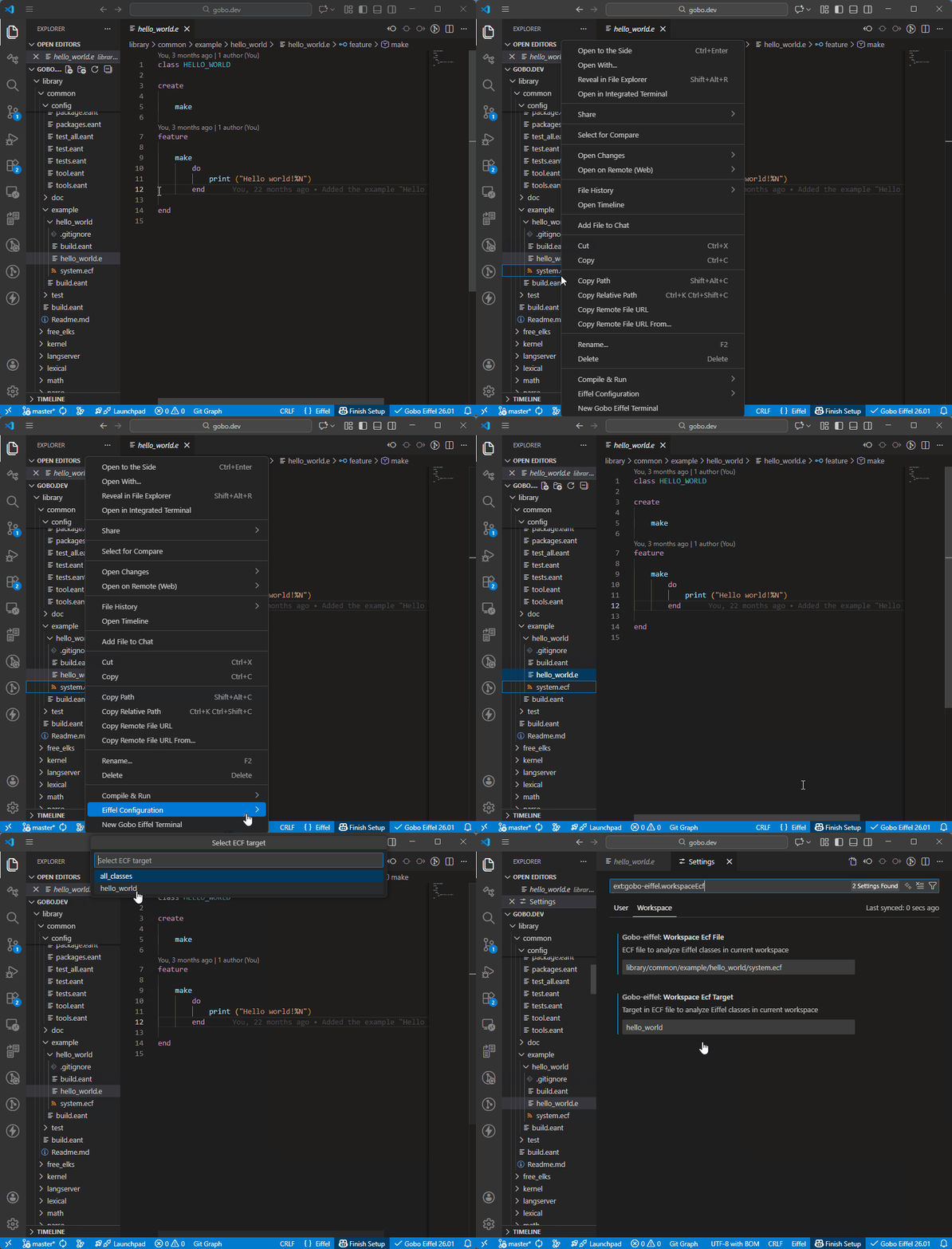
The corresponding workspace-specific settings are filled in automatically.
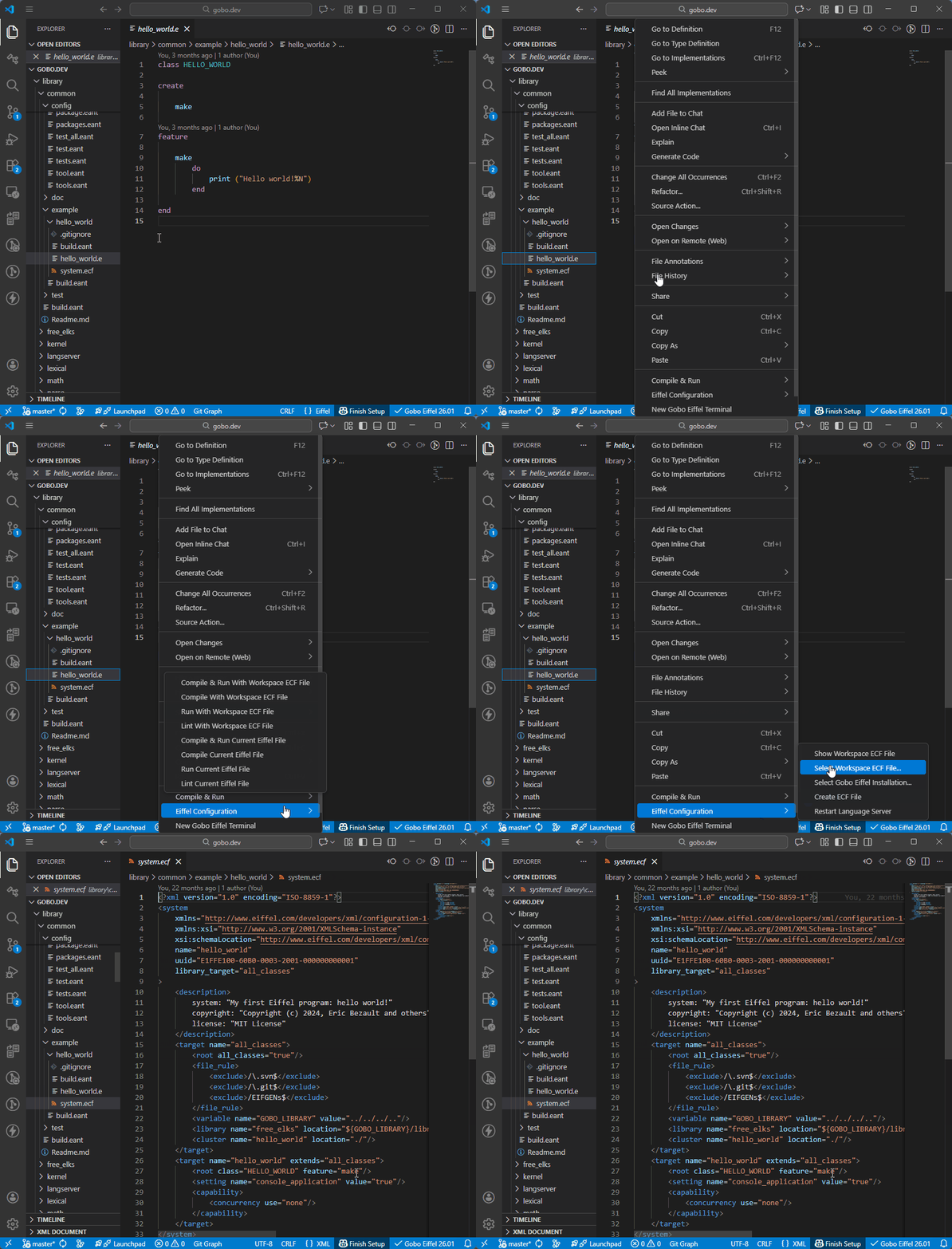
Show Workspace ECF File
To open and edit the workspace ECF file, choose Show Workspace ECF File from a contextual menu.
Create an ECF File
If your workspace does not yet contain an ECF file, you can create one using the Create ECF File command.
See Create ECF File for more details.
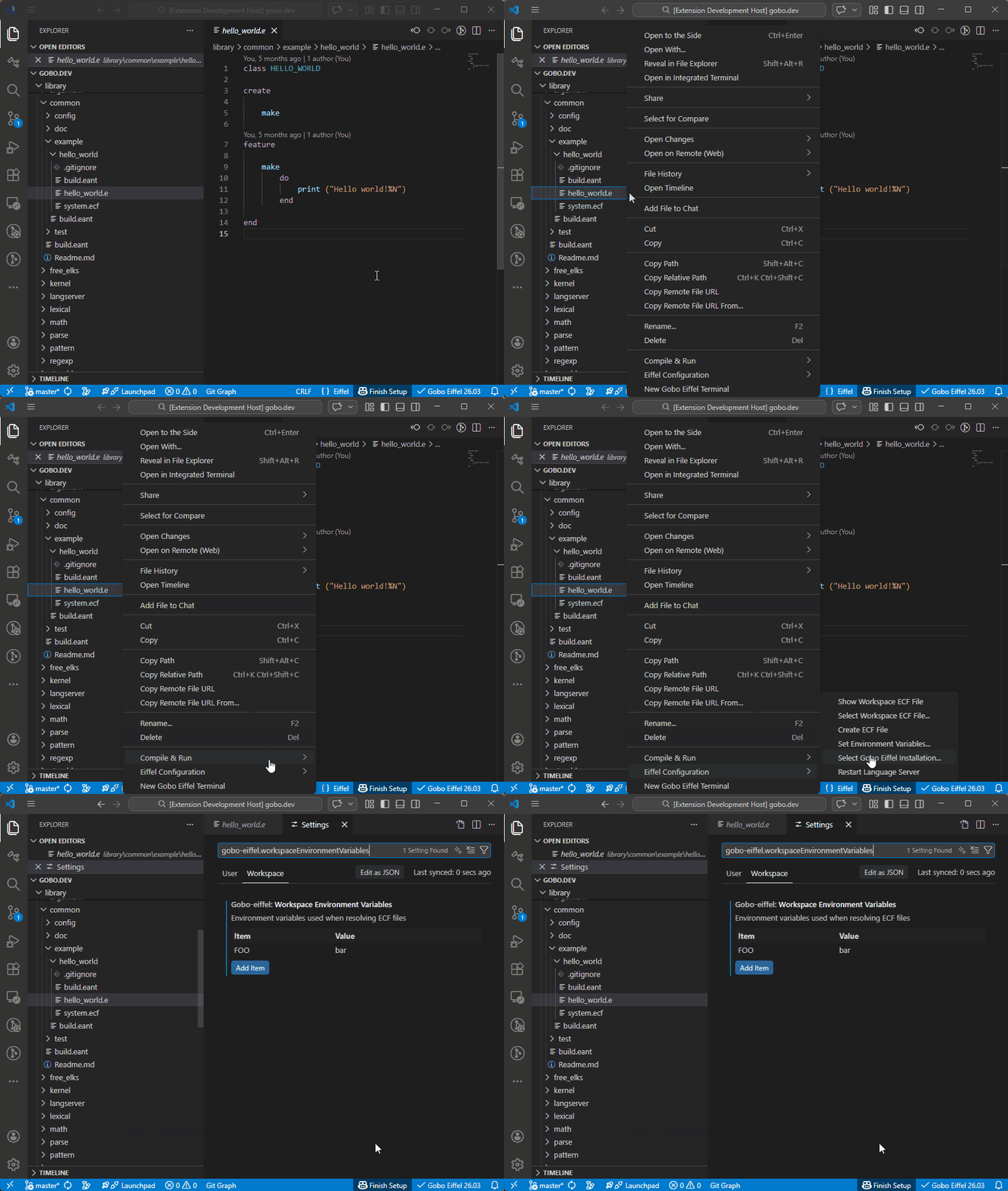
Set Environment Variables
To set environment variables used in the ECF file, choose Set Environment Variables from a contextual menu.
See also
All the commands described above are also available from the Command Palette.
Open the Command Palette with Ctrl+Shift+P
(or Cmd+Shift+P on macOS), then type Gobo Eiffel to see the
available commands.
For an overview of all commands provided by the extension, see Commands overview.